The Biggest Formatting Headaches in Word Documents (and How AI Fixes Them)
You’ve worked for hours on a report or assignment, you download Word to look at it offline, and the layout is broken. The title is no longer centered, images are out of place, and text jumps between pages like it’s in a competition. Ring a bell? One of the most annoying aspects of working with documents is formatting problems. Even small layout errors can ruin your productivity (and patience), whether you’re a professional writing a proposal or a student polishing a thesis. However, WPS Writer is made to simplify formatting and restore clarity to your pages.
Here, we’ll take you through actual formatting nightmares users commonly encounter — and how WPS Writer on Windows provides intelligent, time-efficient solutions. If you’re fed up with battling your files, WPS Academy has dozens of templates and tutorials to guide you through mastering your documents with ease.
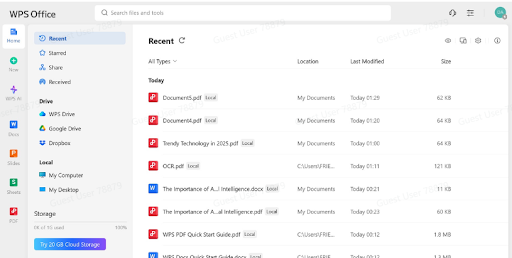
When your file turns into a rebel: the formatting issues we all dread
1. Irregular line spacing that won’t play ball
You copy and paste text from various sources, and oops. Your document now has 1.5 spacing in one paragraph and single spacing in another. Attempting to repair it paragraph by paragraph takes an eternity.
WPS fix:
WPS Writer features a Clear Formatting tool that reverts chosen text to the default format. From there, simply choose your preferred spacing (under Home > Line Spacing) and apply it uniformly throughout your document.
2. Pictures that won’t stay in line or in position
You place an image, and it bounces over your paragraph or cuts up your paragraph unneatly. Moving it slightly results in moving everything else Linkhouse
WPS fix:
WPS Writer offers tight, in-line, and behind-text wrapping choices right-clickable straight on the image. You may also lock the location of the image so it remains anchored to the page.
For complicated documents, use Insert > Text Box > With Image to achieve a space where text and images go together very nicely.
3. Tables breaking across pages
You insert a table, and half of it is on the next page, taking up the middle of a white space that just doesn’t look good. It is not professional-looking, particularly for resumes or reports.
WPS fix:
WPS Writer enables you to keep rows intact, manually split rows, or add borders only where necessary. You can adjust these settings by right-clicking on the table > Table Properties > Row tab, then deselecting “Allow row to break across pages.”
4. Heading styles that don’t match
You attempt to bold, size 14, and center all of your subheadings — but one of them still looks funky. It’s either a rogue font or buried formatting.
WPS fix:
Home > Styles applies heading styles on a general basis. You can modify each style, and when you apply it, it remains the same throughout the document. Changing one heading updates them all of the same type automatically.
5. File corruption and bizarre symbols
Occasionally, a document you’ve worked on will open with missing images, strange symbols, or cryptic formatting issues, particularly when moving between systems or applications.
WPS fix:
WPS Writer has a File Repair function and autosave capability. You may also recover past versions of a document if autosave is enabled (through Backup Center > File Management). This can grab pristine copies of your file before everything went haywire.
6. Inconsistent fonts and distorted layout when exported to PDF
You invest a lot of time in fine-tuning a document for it to end up having its font screwed up by Word to PDF exporting, rearranging elements, or altering colors.
WPS fix:
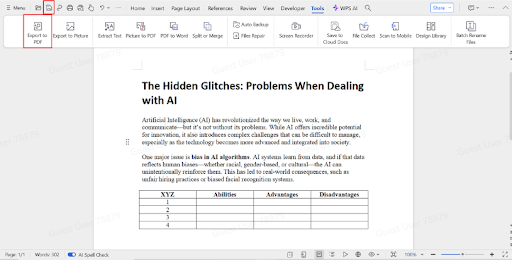
Use Menu > Export to PDF > More Options in WPS Writer to select font embedding, image resolution, and margin options. You can even shrink big files without sacrificing fidelity of formatting — ideal for emailing or handing in final versions.
Detailed instructions for using WPS Writer (on Windows) to repair a broken layout
Here’s a simple way to fix even the most complicated formatting problem in WPS Writer.
Step 1: Turn on the paragraph markings after opening the document
Select Show/Hide under Home. This shows all formatting symbols, including spaces, tabs, and line breaks. You will be able to immediately identify any hidden problems, such as excessive paragraph breaks or improperly positioned indentations.

Step 2: Clean formatting on affected areas
Mark out the areas that appear “off” and go to Home > Clear Formatting. This deletes embedded styles, making it simpler to apply consistent formatting. Then reset line spacing, font, and alignment using the top menu.

Step 3: Resize images and tables
Right-click pictures to alter text wrapping (tight, square, behind text) or anchor them to the page. For tables, use Table Tools > Layout > Repeat Header Rows or anchor split rows under Table Properties. Apply Page Layout > Margins to provide even padding and prevent overlap.

Step 4: Save and export with formatting preserved
Once corrected, go to Menu > Export to PDF. Have “Embed fonts” and “Maintain layout” checked. You may also choose a PDF compression level if the document is image-intensive.
Your document will now appear precisely as intended — anywhere.
Conclusion: formatting peace is possible
We’ve all been there — a single broken heading or jumping image away from tossing the entire document. But with WPS Writer, the anxiety of formatting recedes into the background. It is built to work the way you do, allowing you to correct layout problems quickly and securely.
Whatever you’re formatting – an assignment, event report, or cover letter you want to get seen, WPS keeps your document looking tidy, export-ready, and secure from digital disasters. And it works seamlessly on Windows – no internet needed.
Still stuck with a challenging formatting problem? Let WPS Office walk you through each solution, feature, and formatting touch with tutorials designed for regular users!
Frequently asked questions (FAQs)
Q1: Why is my document rendered differently on a different computer?
Other computers may lack similar fonts or print settings. These result in layout shifts or line spacing changes. WPS Writer fixes this through font embedding when exporting to PDF and providing print preview functions that maintain alignment. Discover how to get your documents to look the same everywhere at WPS Office!
Q2: How can I prevent tables from breaking awkwardly across pages?
Right-click on the table, Table Properties, and de-select “Allow row to break across pages.” You can also place the table in a single page with Paragraph > Keep with Next or Keep Lines Together for neat layout. View table management tips at WPS Office!
Q3: I want to restore an older version of my document.
Yes, if you’ve activated Backup Center, WPS Writer saves backup copies of your document automatically. You can retrieve previous versions by opening Backup Center > View History even if your file is damaged. Restore lost work with ease at WPS Office!
Q4: Why do images keep jumping around when I type?
It will often occur if the image is placed at “In Line with Text.” Alter wrapping style to “Tight” or “Square,” and then resolve its position at More Layout Options > Position. Resolving image flow is a breeze with assistance from WPS Office!
Q5: What can I do to reset the entire formatting in a disordered document?
Highlight all (Ctrl+A), then Home > Clear Formatting. This clears fonts, spacing, and alignment. From there, use custom styles with the Style Pane for uniform formatting across the file. Master formatting gets reset with WPS Office!